

Why the AneeMate web Matebook sometimes shows a small icon
The AneeMate web Matebook prefers a creature's larger render when that artwork is available and otherwise can show its icon. If an image fails to load, the page attempts an icon fallback before hiding failed artwork. That website presentation is separate from whether you have discovered or caught the creature in the game.
The explanation below follows the current web Matebook implementation checked on 25 November 2026. It does not claim that an image failure was deliberately reproduced or that every browser and network condition was tested.
A render and an icon do different jobs
A larger creature render gives the scanner or tile more room to show the character's form and materials. An icon is a smaller piece of reference artwork that can still identify the creature when a larger render is not part of the available art set.
The source chooses the render or icon from the resolved creature entry. When it uses an icon, it applies an icon-specific class. The result can therefore look different in scale and presentation without meaning that the underlying creature data has changed.
This is a display choice on the website. It is not evidence that a creature has a different rarity, an altered evolution requirement or a new acquisition route.
Some entries begin with an icon
The public species data distinguishes artwork types. An entry can have an icon without having a larger render. In that case, an icon is an expected starting representation rather than necessarily the result of a network error.
Shynu provides a useful example in the current reference: its art metadata includes an icon and does not mark a larger render as available. A creature with both art types can use the larger representation instead.
Open the web Matebook and compare entries by their actual names. Do not use the image's apparent size as a shortcut for deciding which creature is stronger. Our base-stat guide explains the separate numerical reference.
A failed render has a fallback path
The page's image-error handler applies within the web Matebook. It identifies the relevant creature entry and, when a different icon source is available, switches the image to that icon.
If the icon is already the attempted source or there is no suitable fallback, the handler hides the failed image. That prevents failed artwork from being treated as a successfully loaded creature render.
This is a source-reviewed behavior, not an end-to-end network test. It describes the intended response in the current implementation; it does not establish the cause of any particular missing picture someone reports.
Keep discovery silhouettes separate
An undiscovered creature's silhouette in the in-game Matebook is a different concept. The released game report describes that discovery presentation; the website's render and icon handling concerns image assets in a browser.
A small icon on the web therefore should not be interpreted as proof that a creature is undiscovered in your game save. Likewise, changing a website filter does not establish that the game's collection has changed.
Our silhouette guide covers the in-game distinction. The local caught-checklist guide explains why web marks should not be confused with synced game progress.
Check the entry before changing anything
If artwork looks unexpected, first read the creature name and the rest of the visible reference. Confirm that you selected the intended entry. A search or filter can change the visible roster and selection.
Next, distinguish a consistently small icon from a picture that never appears. The first can be an expected art choice; the second may need a loading check. Do not infer either outcome from a screenshot that omits the entry name and page.
This sequence is a practical observation routine, not a promise that reloading resolves every image problem.
Report what the browser actually showed
A useful report includes the public page URL, creature name, browser and the visible result. Explain whether other creature pictures loaded and whether the same entry behaved differently on a later normal visit.
Avoid posting account details or browser storage. They are not needed to describe a public creature picture. A screenshot can show the display state, but include a sentence explaining what you expected to see.
The feedback guide provides a broader reporting structure. For this case, keep image presentation separate from statistics, evolution and collection state.
A character reference is still useful
An icon can preserve the creature's identity even when it cannot provide the same view as a large render. Use it alongside the name, elements and current reference fields rather than treating the picture as the whole entry.
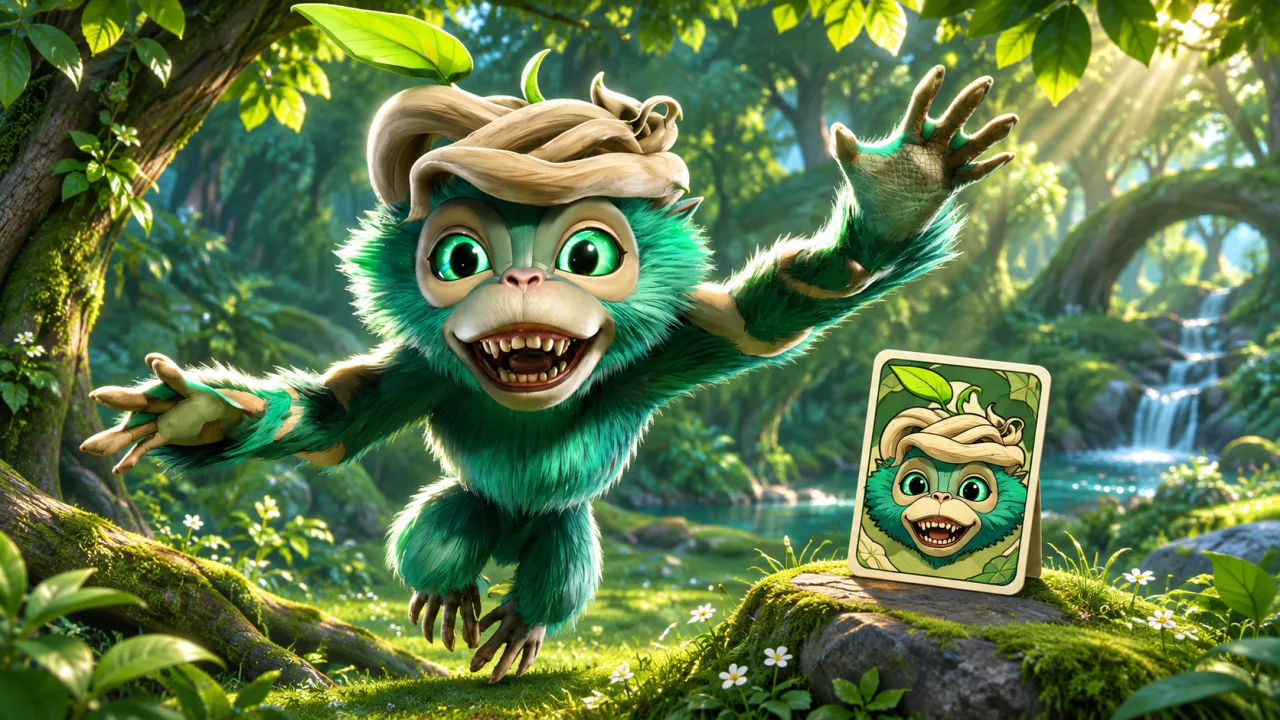
The concept illustration above shows that distinction with one character and a portrait card. It is not a screenshot of an actual loading error or a newly announced Matebook screen.
For keyboard selection, the navigation guide describes another part of the web interface. Artwork fallback does not replace the need for usable labels and controls.
Source and scope
Source: the current AneeMate web Matebook's tile, scanner and image-error handling, plus public species artwork metadata. Reviewed on 25 November 2026. No game-save access, image-error injection or cross-browser certification was performed.